Start with an Express project
Open the add-on listing and follow Adobe Express’s installation or launch prompts. Start the project that will contain your clipped image.
CLIP PATH FOR ADOBE EXPRESS
Give a social post, presentation or other composition a distinctive image boundary. Clip Path Generator brings image shaping into the Adobe Express workflow.
FROM SOURCE TO COMPOSITION
Open the add-on listing and follow Adobe Express’s installation or launch prompts. Start the project that will contain your clipped image.
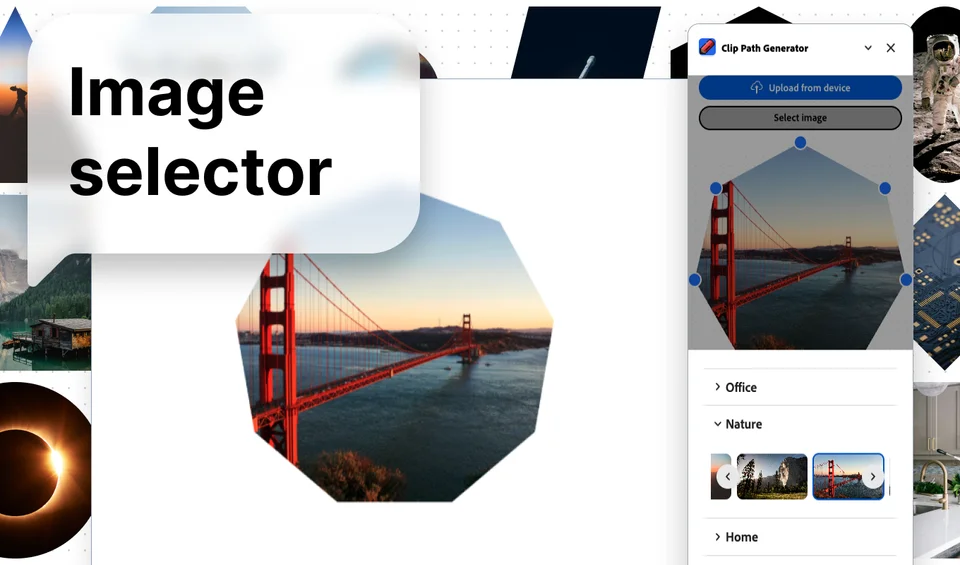
Open Clip Path Generator, choose an image and try a clipping shape. Position the important part of the subject inside the visible area.
Add the clipped result to your Express composition. Check its placement with your typography, background and other assets, then use the host’s normal project export workflow.
Use a shaped image to frame the subject in a post or campaign composition. Leave space around faces and logos so important details survive smaller previews.
Carry a repeated image treatment through a set of slides or supporting visuals. Compare the final crop in the actual Express project before exporting.
The add-on creates assets for an Adobe Express composition. The browser editor instead downloads PNG, SVG or HTML/CSS. A Chrome or Firefox extension is useful when the image starts as a webpage or element capture.
CURRENT LICENSE COVERAGE · Compare licenses
Your Adobe Express Clip Path Generator Gumroad key, including an eligible active subscription, unlocks Adobe Express plus companion web and Chrome/Firefox access. Browser access does not consume an extra native-plugin seat. Figma and Miro remain separate native editions.
They are separate interfaces for different destinations. The add-on works with your Adobe Express project; the web editor exports a standalone asset.
Yes. The updated companion flow verifies an eligible Adobe key without consuming an extra native seat.
New to image clipping? Learn how to shape an image or choose the right export format.