Install your browser’s extension
Choose the Chrome Web Store or Firefox Add-ons listing below. Review the browser’s permission prompts before installing. Both download options stay available so you can choose explicitly.
Extension update: Chrome and Firefox version 0.1.1 are available with companion licensing. The shared editor, Basic/Studio groups and direct polygon editing arrive in extension version 0.1.2, now submitted for store review in both browsers. These updates are already live in the web editor.
CLIP PATH FOR CHROME & FIREFOX
Turn a webpage or selected element into the starting point for your next graphic. Capture with the Chrome or Firefox extension, then compose the screenshot in the Clip Path editor.
FROM SOURCE TO COMPOSITION
Choose the Chrome Web Store or Firefox Add-ons listing below. Review the browser’s permission prompts before installing. Both download options stay available so you can choose explicitly.
Open the webpage you want to capture and use the extension’s capture flow. Browser-internal and other protected pages may restrict screenshot capture; use an ordinary webpage or a local image instead.
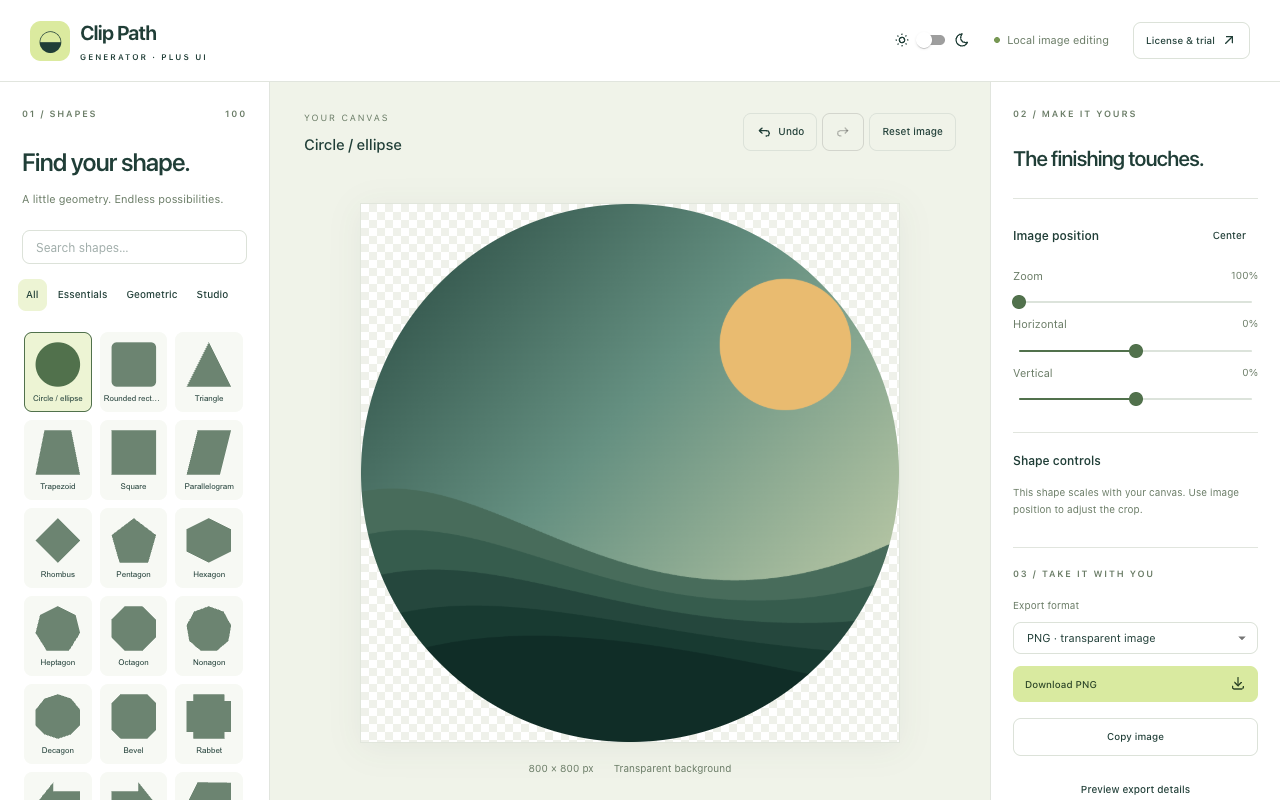
Choose a shape, adjust the crop and export PNG, SVG or HTML/CSS. Check the exported asset in the application or website where you will use it.
Capture an interface or part of a webpage and turn it into a shaped visual for a presentation or concept. Respect the source material’s permissions when sharing your result.
Keep the capture and clipping steps in one browser workflow. If you already have a local image, the web editor lets you start without installing an extension.
Extensions add webpage capture to the browser workflow. They are not required for uploading, pasting or dropping an image into the web editor. Current browser exports use an 800 × 800 canvas; SVG embeds the raster image inside a vector clipping boundary.
CURRENT LICENSE COVERAGE · Compare licenses
Use an eligible Figma, Adobe Express or Miro Clip Path Generator Gumroad key for companion access in Chrome, Firefox and the web editor. It does not consume extra native-plugin seats. Five trial exports remain available per installation.
Choose the store for the desktop browser you use. The Chrome and Firefox links are both provided; the website does not redirect you automatically.
The web editor and extensions process image content locally. Licensing and trial requests go to Plus UI; they do not include the image.
Yes. Open the web editor for local image uploads. Webpage capture is the part that requires an extension.
New to image clipping? Learn how to shape an image or choose the right export format.